
If you’re one of those people who is very particular about protecting your privacy you might find many sites on the web today very intrusive. There are some basic steps that a lot of users might be familiar with, like clearing your cookies and browsing history frequently. Here are some advanced tips on how you can improve your privacy if you use Mozilla’s Firefox web browser to surf the web.
1. Clear a particular URL from your browsing history
Firefox tries to help out users by preserving their browsing history and offering to fill out the address of a previously browsed website as you begin to type it in the address bar. However, if you visit a specific site and don’t want your parents, spouse, boy/girlfriend etc, to find out that you visited it, you can delete
just that site from the Firefox’s history.
Using Windows
Start to type out the URL, and when Firefox pops up that site in the list of sites, select it by moving your cursor over it (but don’t click) – and click the
Delete key on your keyboard.
NOTE: the
Delete key is not the
Backspace key – make sure to use the right one.
Using OS X
Start to type out the URL, and when Firefox pops up that site in the list of sites, select it by moving your cursor over it (but don’t click) – hold down the
Shift key and click the
Delete button on your keyboard.
2. Set smart cookie settings
There are a number of websites that don’t allow you a normal browsing experience without having your browser accept all cookies. If you are not a fan of cookies and want to browse this website there’s a nice solution to the problem. You can, of course, manually erase all the cookies after you are done browsing such a website. A smarter way to achieve this might be to use Firefox’s built in setting that deletes all cookies when you close your web browser.
Using Windows
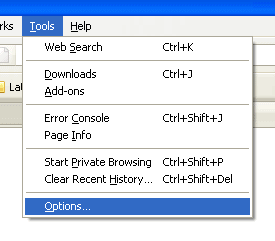
- If you are using Firefox 3.6 on Windows you need to go to Tools -> Options in the application’s menu.
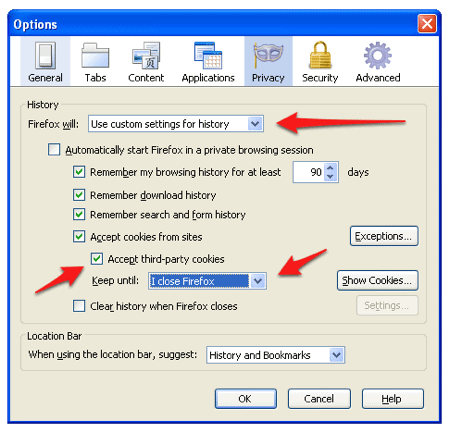
- Click on the Privacy tab. Set Firefox will: to Use custom settings for history.

- Set the cookies bit to Keep until: I close Firefox
Using OS X
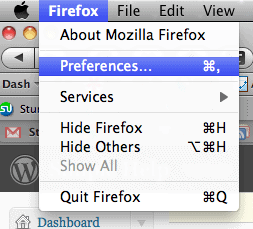
- Select Firefox and then Preferences
- Select the Privacy tab. Set Firefox will: to Use custom settings for history
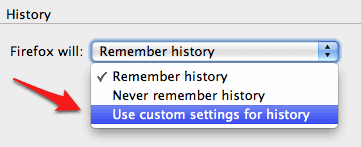
- Make sure Accept third-party cookies is checked, and then select I close Firefox from the Keep until: menu.

3. Clear History Automatically
Like in the previous tip, you can have Firefox clear your history every time you close the browser. This is a particularly good thing to set on a publicly used computer.
Using Windows
- To set this navigate to Tools -> Options in the application’s menu
- Click on the Privacy tab. Under the section titled Private Data you will find a checkbox with the words Clear history when I Firefox closes.

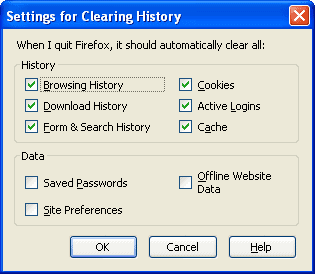
- You can also fine tune this option by clicking on the Settings button next to it. Here you can set what private data you want cleared. You can set Firefox to clear your saved passwords, browsing history, cookies, cache, and more.
Using OS X
- Select Firefox and then Preferences
- Select the Privacy tab. Make sure the box next to Clear history when Firefox closes is checked

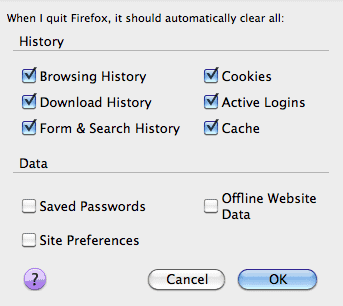
- You can further secure Firefox by determining what other data should be deleted when you close Firefox by clicking the Settings button. This will bring up a window with many choices.
4. Use Master Password
If you have set Firefox to save the passwords you use to login into your web accounts and want to maintain some degree of privacy while using them, Firefox allows you to set a master password which allows these passwords to be used.
Using Windows
To set this navigate to Tools -> Options in the application’s menu
Click on the Security tab and select Use a master password 
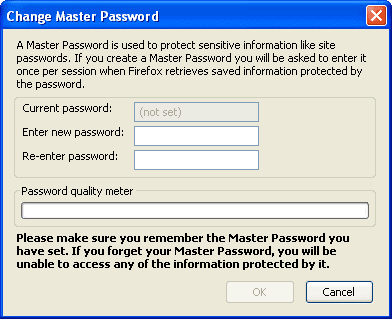
Enter your master password in both of the provided fields. Click OK when you’re done. Henceforth Firefox will ask you for this master password once for each browsing session for the saved passwords to be used.
Using OS X
- Select Firefox and then Preferences
- Select the Security tab and place a check in the box next to Use master password.

- Now enter your password in both the spaces provided. Click OK. For each Firefox session going forward, you’ll need to enter your master password before you’re able to enter a user/pass on a web site.

Comments
Post a Comment
Like This Article ,Tell Us What You Think About It.We Are Keen To Hear From You.